
1) I mentioned I bought back my rights to the Mayhem Series. Without fellow writers lending advice and sharing their experience with me, I’d probably still be tryin’ to figure out how to Indie pub the first five books, never mind be ready to publish book 6. I have a new editor, whom I adore, and my favorite cover designer jumped on board, too. Wait till you see my new cover. So exciting!
2) I had the misfortune of reading an author’s “bad behavior” list on Twitter. This woman tweets out an ever-growing list of bad behavior by authors. Some of the things on that list of 100 is downright shocking. So, a redux seemed like a good idea.
3) I’m reading book 6 one last time before creating my ARCs. This is my neurotic stage, nitpicking every single word, and ignoring any compliments from my editor. Almost done, so I can probably shelve the crazy long enough to respond to comments. 😉
Writing Community Etiquette
 One of the most amazing things about being an author is mingling within the writing community. Writers, as I’m sure you’ll agree, are some of the most generous, supportive, and kind humans on the planet.
That said, there are a few unwritten rules within the community. Let’s discuss to enlighten the newer members of our family.
Other Writers are NOT Competition.
They are our people, our tribe. The longer we’re in this business the more it becomes a kinship. I can’t even imagine working without other writers by my side. We share successes, as Joe so beautifully demonstrated last Saturday. We also share failures (privately, btw, never rant on social media). We lift each other up and try to help where we can.
Without other writers, imagine how lonely this profession would be? As it is, we spend countless hours alone at the keyboard, hanging with our fictional homies or burrowing down one research rabbit hole after another. What if we had no one to share our discoveries with? Or to bounce ideas off of? Or to help us celebrate a new release? Or to knock some sense into us when nothing seems to go right?
We’re better because of, not in spite of, our relationships with other writers.
Lose the Ego
If this business hasn’t taught you humility, you haven’t been part of the publishing industry long enough. You might be soaring now, but you will fall one day. It’s inevitable. Yes, celebrate your successes. Don’t let it go to your head, though. A reality check now and then is an important exercise. Chances are there’s plenty of writers who sell more books than you, who are more loved by readers, who has rocketed to heights you (or I) might never reach.
John’s recent post is the perfect example of success and humility. It’s one of my favorite posts he’s written because of its honesty and realness.
Don’t be a Jerk
 Do you really need to point out a typo in a tweet? We’re all fallible. Smile and move on.
Do you really need to say how much you disliked a fellow writer’s work?
What you put out in the universe has a way of boomeranging at the most inconvenient times. It may not be today, but eventually Karma will bite back. Count on it.
When you first join the writing community, it may seem endless. Here’s the thing about skewed impressions. Objects in the mirror are closer than they appear. Cross a fellow writer, and that circle can and will get downright claustrophobic. Why? Because writers protect other writers. It’s what we do; it’s who we are as a community. Just ask Disney.
Give More Than You Receive
Did a fellow writer blurb a book for you? Great! What did you do to help support them? I’m not saying you need to match the gesture by blurbing their next book. Maybe you’re not at that level yet. What should you do? Here are a few suggestions:
- Review one of their books
- Offer to beta read
- Share their good news, new release, book cover(s), blog posts, interview, etc. on social media
- Better yet, pay it forward to a writer farther down the rungs of the ladder—most writers will love knowing by helping Writer X, they also helped Writer Y.
The worst thing you can do is to ask for another helping hand when you’ve showed no appreciation for the last favor. And for the love of God, NEVER ask a fellow writer to fund your writing career because, in your eyes, they’re successful and you’re entitled enough to think you shouldn’t have to work a day job while you hone your craft. Yeah, those people exist. And they all seem to have my email address. Lucky me. 🙂
Common Courtesy
Treat fellow writers as you would like to be treated.
- Respond to blog comments. If someone has taken the time to comment on your article, don’t treat them like they’re invisible. Reciprocate with a response. Common courtesy is not rocket science. How would you feel if one day everyone stopped commenting on your blog posts? If you continue to ignore your audience, that can and will happen. If chatting with your audience isn’t important to you, then close the comment section. By leaving it open you’re obligated to respond.
- Share a fellow writer’s posts. Let’s take Twitter, for example. If someone retweets everything you share, or even if they only share one post, return the favor. They didn’t have to take the time to share your tweet with their audience, but they did. Do the same for them.
But Sue, what if their books have sex acts on the covers? If you don’t feel comfortable sharing their pinned post with your audience, then scroll through their timeline until you find a more appropriate post that you can share.
- Never hijack another writer’s social media timeline. We’ve all met the writer who thinks it’s acceptable to tag 90 authors in their book promos. It isn’t. If anything, said writer looks unprofessional and desperate. I have a few followers on Twitter who do it constantly, and it drives me crazy. The only ones I haven’t blocked (yet) are the writers who also RT my tweets. Does that make tagging okay? No. Unless you’re having a conversation with someone or sharing their work, pretend tagging doesn’t exist.
Lose the Automated Message
 I admit, when I first joined Twitter, an automated message to greet my new followers seemed like a good idea. Let me set the record straight—they are never a good idea.
Nothing screams amateur more than an automated message. I once followed this writer whose automated message read: “I want to be your favorite author!” I wrote back: “I want to be your favorite author, too!”
Surprise, surprise, she unfollowed me. Good riddance.
I can think of only two possible exceptions for sending a private message.
- If you’re extending an offer that will benefit them, not you. And it’s free. You wouldn’t ask someone you just met at a party for money, right?
- If you’re having trouble finding their books and are asking for a link.
In both these non-automated scenarios, most writers won’t mind. But first try to find their email address. Email is less intrusive than private messaging.
Auto-Add Email to Newsletter
If a fellow writer accepts your friend request on Facebook or follows you on Twitter/Instagram or subscribes to your YouTube channel, that does NOT mean they’ve signed up to receive your newsletter. I’ve had friends add me to their list, but they’re actual friends who I chat with all the time. For everyone else, there’s a big difference between showing support for your fellow writers and signing up to receive their newsletters.
Think of it this way. I have over 12K followers on Twitter alone. Imagine if they all added me to their email list? My inbox would explode! The less-informed writer may be thinking: But Sue, you can unsubscribe at any time.
Oy. I hear that excuse all the time. Newsflash. Unsubscribing from a newsletter you never signed up for in the first place annoys most writers. Plus, it takes time away from writing, researching, marketing, or the gazillion other things we do daily.
Read the room, dear guppy (new writers a la MWA). A follow-back or an acceptance of a friend request is just that. Nothing more.
Final Thought
As I said at the beginning of this post, writers are some of the best people on the planet. Most of us would agree that without other writers, this profession would be a lonely one. But we’re never truly alone. There’s always another writer who’ll be there when we need them, just as we were there for them. We’re blessed, and that gift should never be taken for granted.
Over to you, TKZ family.
Did I miss anything? Add your tip! If you can’t think of anything to add, then share a story of a writer helping you or vice versa.
 Let me preface this post by saying, discussing my personal struggles with pain is my least favorite subject. The only reason I’m even broaching this subject is because I discovered a cool connection between writing and pain management, and I hope it’ll help those who need it.
 The word “success” has various meanings. Some writers stay laser-focused on the end result, but I propose that we step back, slow down, and view success as footprints in the sand. Each footprint represents one day.
 As I tell this story, think back over your life. We’ve all gone through hard times, some worse than others. Humor me, and if you’re struggling with story structure, you’ll at least begin to grasp it by the time you’ve read this post. That’s my hope, anyway.

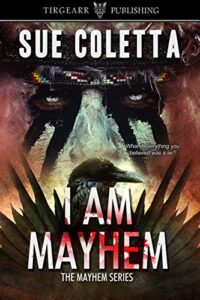
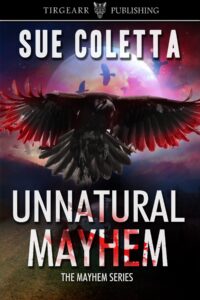 With the fate of the Natural World at stake, can a cat burglar, warrior, and Medicine Man stop trophy hunters before it’s too late?
 Many new writers struggle with how to emphasize words in fiction. It’s tempting to stick a word in ALL CAPS.
 Ever wonder why pumpkin spice is so popular? The fascinating part is not only does it taste amazing, but many are obsessed with how it makes them feel on an emotional level.


 Last week, Sisters in Crime approached me to do a